In Part 1, we covered the basics of Docker and Wazuh and explained how they work together.
In this part, we’ll move from theory to practice and deploy a fully working Wazuh environment using Docker.
This setup is ideal for:
-
Testing and learning
-
Home labs
-
Small to medium monitoring environments
Prerequisites Recap
Before we begin, make sure you have:
-
Docker installed
-
Docker Compose installed
-
At least 4 GB RAM available
-
Terminal access (Linux / macOS / WSL recommended)
You can verify Docker with:
docker –version
docker-compose –version
Step 1: Get the Official Wazuh Docker Repository
Wazuh provides an official Docker repository that includes preconfigured environments.
git clone https://github.com/wazuh/wazuh-docker.git
cd wazuh-docker/single-node
The single-node deployment is perfect for getting started and includes:
-
Wazuh Manager
-
Elasticsearch
-
Filebeat
-
Wazuh Dashboard
Step 2: Review the Docker Compose Configuration
Open the docker-compose.yml file:
nano docker-compose.yml
At this stage, you usually don’t need to change anything, but it’s good to understand:
-
Which containers will run
-
Which ports are exposed
-
How services communicate internally
Tip: For production environments, memory limits and security hardening should be adjusted.
Step 3: Start the Wazuh Stack
Launch all services using Docker Compose:
docker-compose up -d
This will:
-
Pull the required images
-
Create the containers
-
Start the entire Wazuh stack
The first startup may take a few minutes.
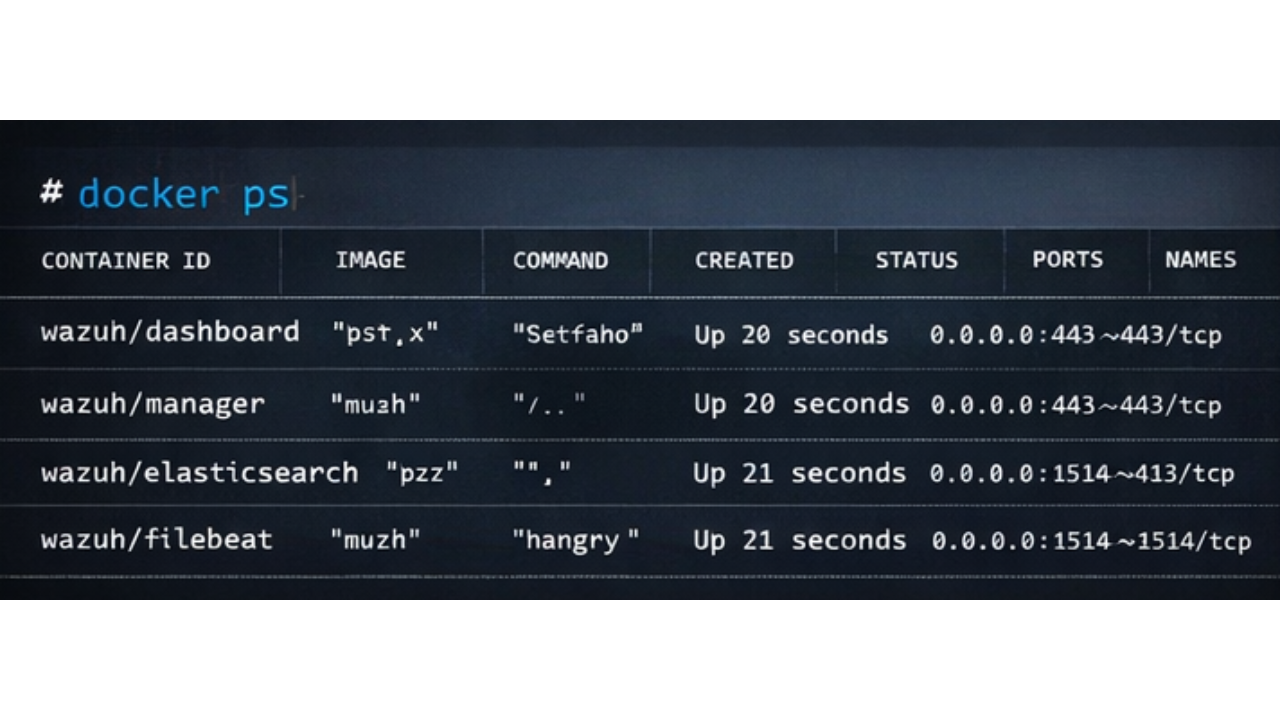
Check container status:
docker ps
You should see all Wazuh-related containers running.
Step 4: Access the Wazuh Dashboard
Once everything is up, open your browser and navigate to:
https://localhost or https://your-server-ip
Default Credentials:
-
Username:
admin -
Password:
admin
Important: Change the default credentials immediately after your first login.
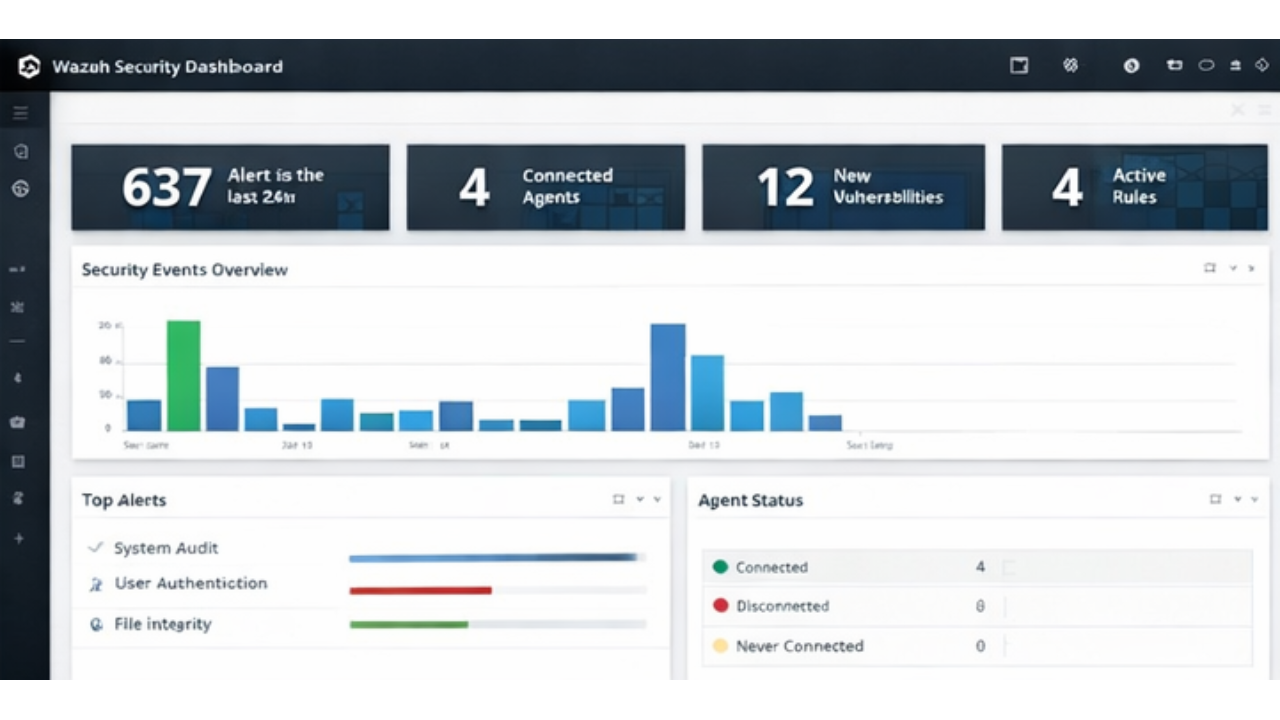
What You Should See
Inside the Wazuh Dashboard, you’ll find:
-
Security alerts
-
System and agent status
-
Compliance and vulnerability data
-
File integrity monitoring results
At this point, Wazuh is fully operational – even without agents.
Security Note
This Docker setup is intended for:
-
Learning
-
Testing
-
Internal monitoring
For production use, you should:
-
Enable TLS hardening
-
Change default passwords
-
Restrict exposed ports
-
Consider a multi-node deployment
Conclusion
You now have a working Wazuh SIEM environment running on Docker. This setup provides a fast and flexible way to explore security monitoring, log analysis, and threat detection without complex manual installation.
What’s Next? (Part 3 Preview)
In Part 3, we’ll cover:
-
Adding Wazuh agents
-
Monitoring real systems
-
Basic alerting and rule tuning
-
Common troubleshooting tips